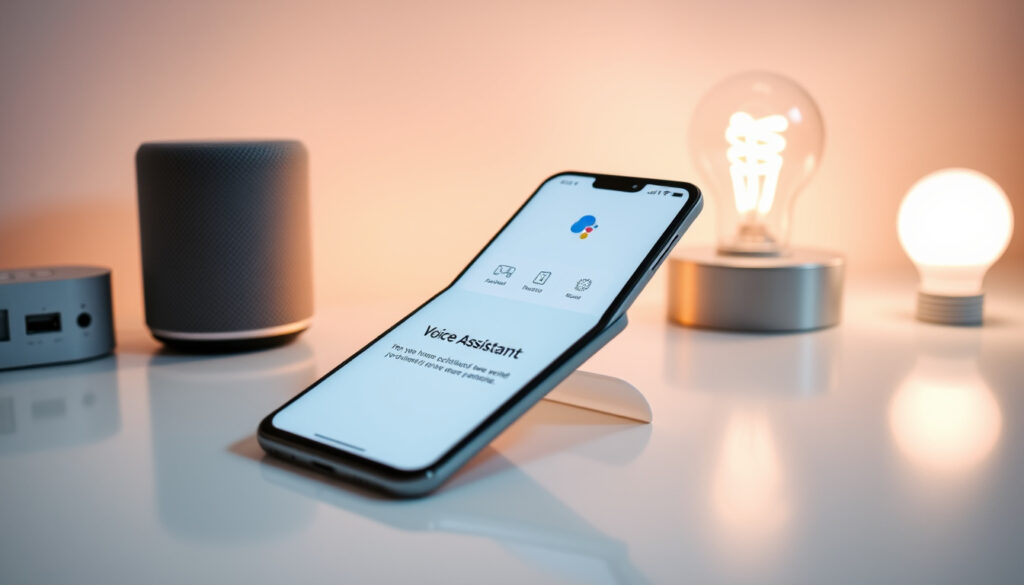
OK Google Set Up My Device – Complete Setup Guide
Setting up a new smart speaker or display can feel intimidating, but Google built a streamlined voice-activated process specifically for this purpose. The command “OK Google, set up my device” handles the heavy lifting by pairing your phone with the hardware, signing you into your Google Account, and connecting everything to your Wi-Fi network automatically.
This feature works best with compatible Nest and Home devices and requires an Android phone running the Google app. The entire workflow typically completes in under ten minutes when conditions are ideal. Understanding the exact requirements and sequence prevents the most common setup failures.
Those looking for guidance on how to set up Google Home will find that the voice setup process offers a particularly convenient path forward for compatible hardware.
How Do I Set Up My Google Device with OK Google?
The voice setup process relies on a specific dialogue between your phone and the new hardware. Each step builds on the previous one, and skipping ahead typically causes the pairing to stall or fail entirely.
Overview of the Setup Command
Key Insights Before You Begin
- The command triggers Bluetooth pairing mode on both devices automatically
- Setup must be initiated from the Google app on your Android phone
- Your phone shares its current Wi-Fi network with the new device automatically
- Proximity matters—keep the device within a few feet of your phone during pairing
- The command does not work for standard Android phones or tablets seeking initial setup
- Older Nest and Home models require the 2.4GHz Wi-Fi band specifically
- Account linkage enables voice recognition, routines, and smart home control afterward
Essential Requirements
| Requirement | Details |
|---|---|
| Google Account | Required for linkage; create one if needed |
| Wi-Fi | 2.4GHz band mandatory for Home/Nest devices |
| Compatible Devices | Nest Hub, Home, Home Mini, Android TV |
| Voice Activation | Hey Google or OK Google trigger phrase |
What Devices Are Compatible with OK Google Set Up My Device?
Not every Google-branded product supports the voice-initiated Quick Start feature. The command works exclusively with smart home hardware designed for first-run configuration through the Google Home ecosystem.
Nest and Home Series
The primary targets include the Nest Hub and Nest Hub Max displays, original Google Home speakers, Home Mini units, and newer Nest Audio devices. Android TV and Google TV streaming products also respond to this command during their initial activation phase.
Bluetooth accessories such as earbuds and speakers can pair through Fast Pair once the primary device setup completes, but these use a different workflow that does not involve the “OK Google, set up my device” command.
Phone and Tablet Compatibility
The voice setup feature requires an Android phone running Android 6.0 or higher with at least 1.5GB of RAM, the Google app version 6.13 or newer, and Google Play Services installed.
iOS devices do not support the voice-activated Quick Start flow. Apple users must complete setup manually through the Google Home app, which involves additional steps and does not leverage the hands-free command sequence described above.
Platform Comparison
| Category | Android | iOS |
|---|---|---|
| Voice Setup | Full Quick Start via Google app | App-based only |
| Data Transfer | Apps, messages, contacts via Google Account | SMS transferable during setup |
| Bluetooth | Fast Pair auto-notifications | Manual pairing required |
Why Isn’t OK Google Set Up My Device Working?
When the voice command fails to trigger the setup wizard, the cause usually falls into one of three categories: recognition issues, connectivity problems, or account authentication failures. Identifying which one applies points directly to the solution.
The Command Does Not Respond
If saying “OK Google, set up my device” produces no reaction, the first check should be whether Hey Google is enabled in your Google app settings. Navigate to Settings, then the Google app section, and confirm that Voice Match and Hey Google are both turned on.
The device language must also match one of the supported voice input languages. If your Google Assistant is set to an unsupported language, the command may register as speech without triggering any action. Updating the Google app and Google Play Services to their latest versions often resolves recognition glitches.
Wi-Fi Connection Failures
Most setup stalls occur because the device connects to the wrong frequency band. The 2.4GHz network is mandatory for Google Home, Nest Hub, and Home Mini. The 5GHz band works only on newer models and even then may cause delays if the router load is heavy.
Restarting your router before beginning setup clears accumulated connection sessions and often resolves pairing delays. Keep the Nest or Home device close to your phone throughout the process.
Pairing and Code Issues
When the confirmation code fails to appear on the device screen, visit google.com/device manually to enter the pairing code. Bluetooth and Location services must be enabled on your phone for Fast Pair to function correctly.
If the device does not appear in the available devices list, refreshing the list helps. Some data transfers require Android 10 or higher, so checking your phone’s software version before starting prevents mid-setup interruptions.
Factory Reset as Last Resort
When all troubleshooting steps fail, a factory reset clears corrupted configuration data. For Google Home and Nest devices, hold the reset button for ten to fifteen seconds until the light indicator turns orange or red. The device then restarts in discovery mode and accepts a fresh setup attempt.
A factory reset removes all account linkages and personal settings from the device. After resetting, you must repeat the full voice setup process from the beginning.
How Long Does OK Google Set Up My Device Take?
The complete setup workflow finishes in approximately five to ten minutes under normal conditions. The actual duration depends on three variables: Wi-Fi speed, the volume of data being transferred to the device, and whether any troubleshooting steps become necessary mid-process.
Simple configurations with fast internet and no errors typically complete in under five minutes. Newer devices downloading firmware updates during setup may stretch toward the ten-minute mark. Network congestion or repeated pairing failures can extend this significantly.
Standard Android phones and tablets without voice Quick Start require the traditional on-screen setup path, which involves tapping Start, selecting Wi-Fi, signing in, and copying data manually. This workflow generally takes longer and includes more manual steps than the voice-activated alternative.
What Has Changed in Recent Updates?
The core voice setup mechanism has remained consistent through multiple Assistant versions, though Google has gradually expanded compatible device types and refined the on-screen prompts. No major 2024 or 2025 firmware changes specifically targeting the “OK Google, set up my device” workflow appeared in available documentation.
The process aligns with current Android 10 and later standards, meaning users with modern phones and updated Google services experience the smoothest setup flows. Older devices running Android 5.0 with 1GB RAM may encounter additional prompts or slower data transfers, though the fundamental steps remain identical.
Established Facts and Areas of Uncertainty
| Established Information | Information That Remains Unclear |
|---|---|
| Works on Android with Google Home app | Variable success rates on crowded Wi-Fi networks |
| Initiates the standard setup wizard | Exact iOS permission requirements for Home app access |
| Requires 2.4GHz Wi-Fi for Home and Nest devices | Specific firmware differences across manufacturing batches |
| Links device to Google Account for voice control | Whether 5GHz-only networks cause permanent setup failures |
Sources and Official Documentation
“Say ‘Hey Google, set up my device’ to begin.”
— Google Support Documentation
Google’s official support pages for Android TV setup and Google Assistant voice commands provide detailed step-by-step guidance for each compatible device type. The Google Assistant help center maintains current compatibility information and known issue listings.
Summary
The “OK Google, set up my device” command streamlines getting new Nest and Home hardware online and linked to your account. It works exclusively from an Android phone with the Google app, requires a Google Account and 2.4GHz Wi-Fi, and finishes within ten minutes when conditions cooperate. Most failures trace back to Hey Google being disabled, wrong Wi-Fi frequency, or account authentication issues—all of which have clear fixes documented by Google. For those experiencing persistent problems, a factory reset followed by repeating the voice setup sequence typically resolves the issue.
What does OK Google set up my device do?
It launches a guided setup wizard that pairs your phone with a compatible Nest or Home device, signs you into your Google Account on the hardware, and connects everything to your Wi-Fi network automatically.
Can OK Google set up my device on iPhone?
No. The voice-activated Quick Start feature is not available on iOS. iPhone users must set up compatible devices manually through the Google Home app.
How long does OK Google set up my device take?
The process typically takes five to ten minutes, depending on Wi-Fi speed, network congestion, and whether any troubleshooting steps become necessary.
What Wi-Fi does OK Google set up my device require?
Google Home, Nest Hub, and Home Mini require a 2.4GHz Wi-Fi band. Newer models may also support 5GHz, but the 2.4GHz connection is mandatory for older hardware.
Do I need a Google Account for device setup?
Yes. A Google Account is required to link the device for voice control, routines, and smart home integration.
How do I factory reset before running OK Google set up my device?
Hold the reset button on the device for ten to fifteen seconds until the indicator light changes color. The device then reboots in discovery mode, ready for a fresh setup attempt.
What should I do if the pairing code does not appear?
Visit google.com/device manually and enter the code shown there. Ensure Bluetooth and Location are enabled on your phone for Fast Pair to work.
More related posts
 Does Matcha Have Caffeine? Caffeine Content vs Coffee
 The Essence Vault Reviews: Price, Longevity & Value
 Things to Do in Brighton: Top Attractions & Activities
 Michael Crawford: Phantom Legend’s Life and Latest News
 How Long to Boil Broccoli: Exact Times for Perfect Results
 Kieran Culkin: Family, Kids, and Home Alone
 India vs New Zealand Cricket Team Stats: Head-to-Head Records
 Space NK Covent Garden: Guide to London’s Beauty Store
